As a healthcare provider, receiving laboratory results electronically can save time, reduce paperwork, and ensure patient results are available directly within your GoodX EMR. This guide walks you through registering for Dynacare eResults and explains how GoodX completes the final integration.
Dynacare eResults is a secure electronic service that delivers laboratory results directly to your EMR, eliminating the need for paper or faxed reports.
With GoodX Healthcare, your Dynacare results are imported directly into the patient's electronic record, making them easier to review and manage.
Navigate to the Dynacare eResults portal to access the eResults User Registration form
An individual serving as the coordinator or focal point for a Medical organization e.g. doctor, nurse practitioner, clinic manager etc.
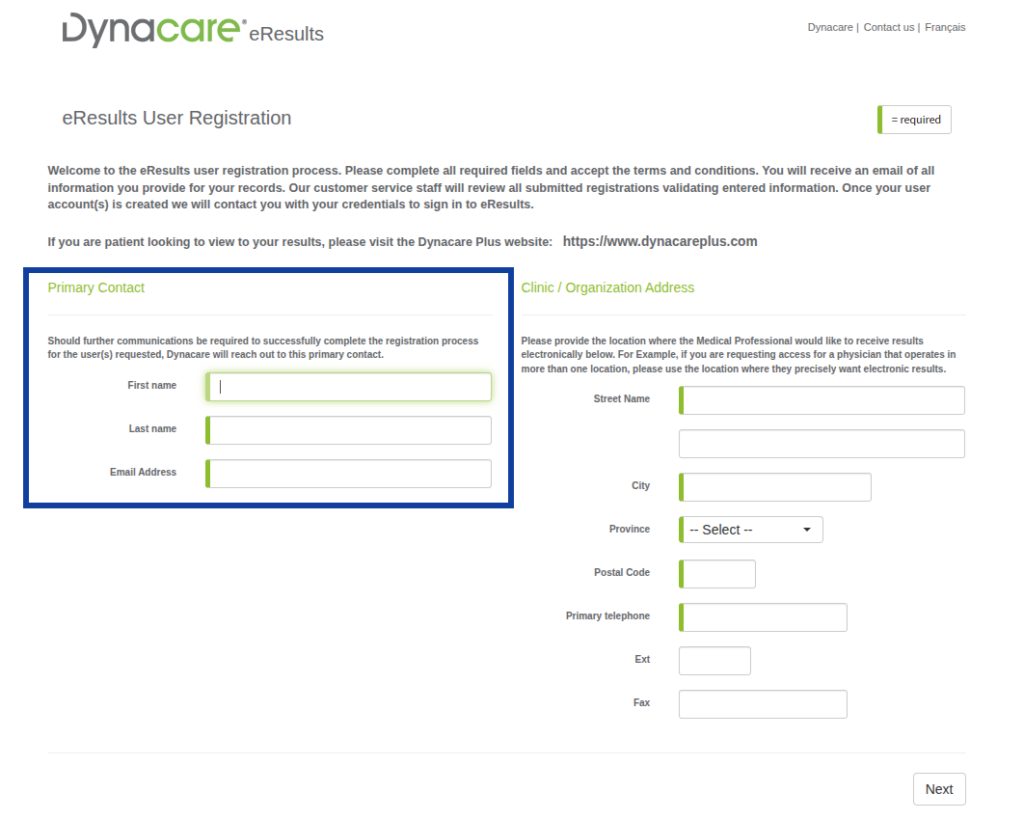
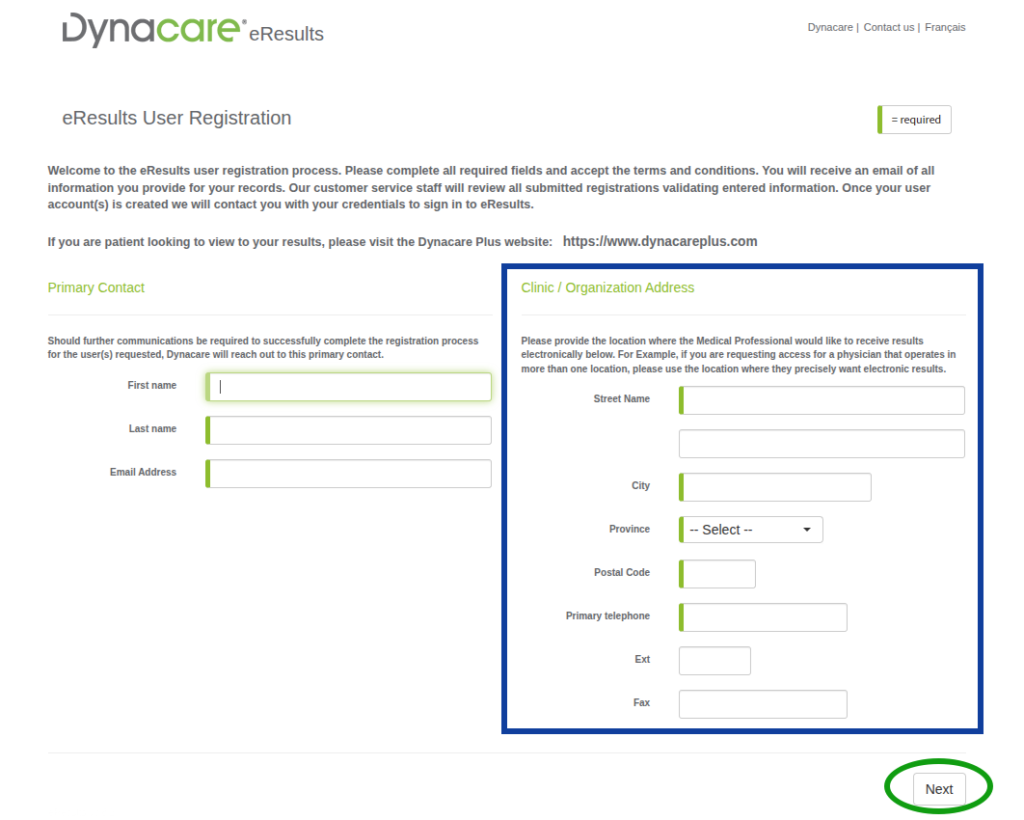
Enter “Clinic / Organization Address” and click “Next”
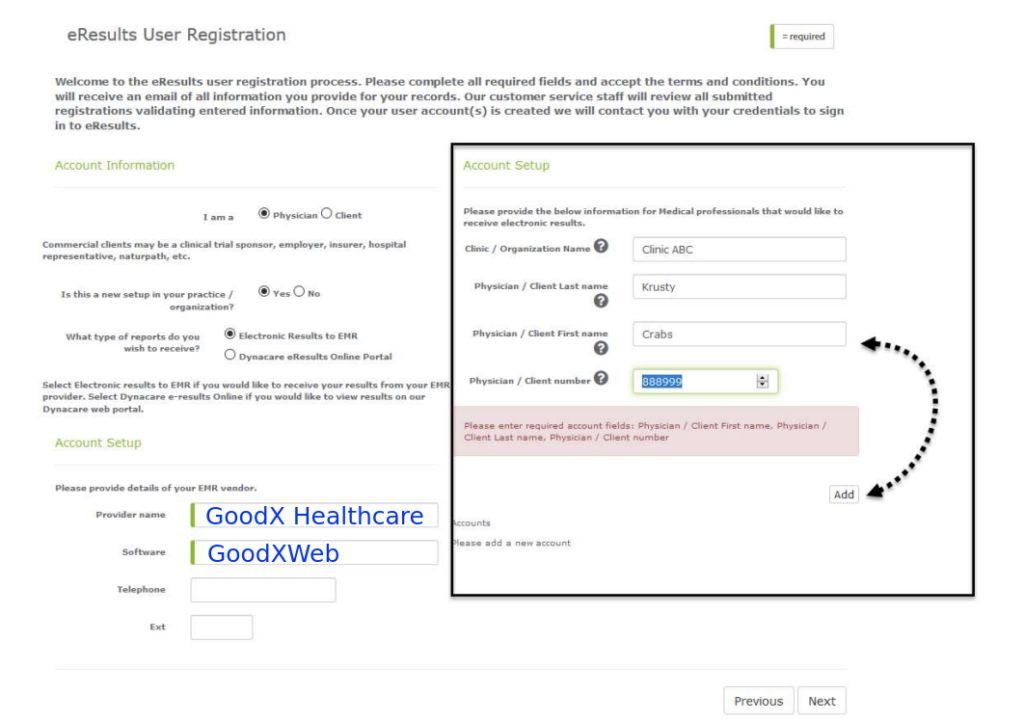
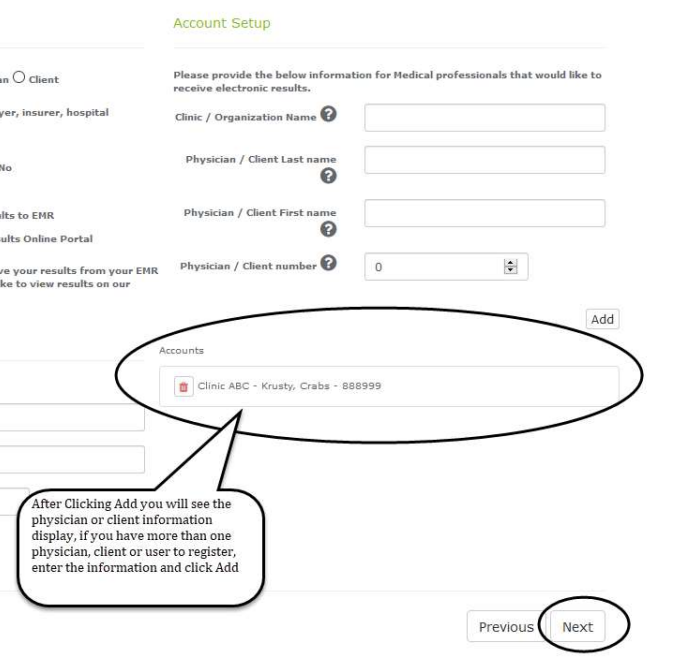
Enter the “Account information”
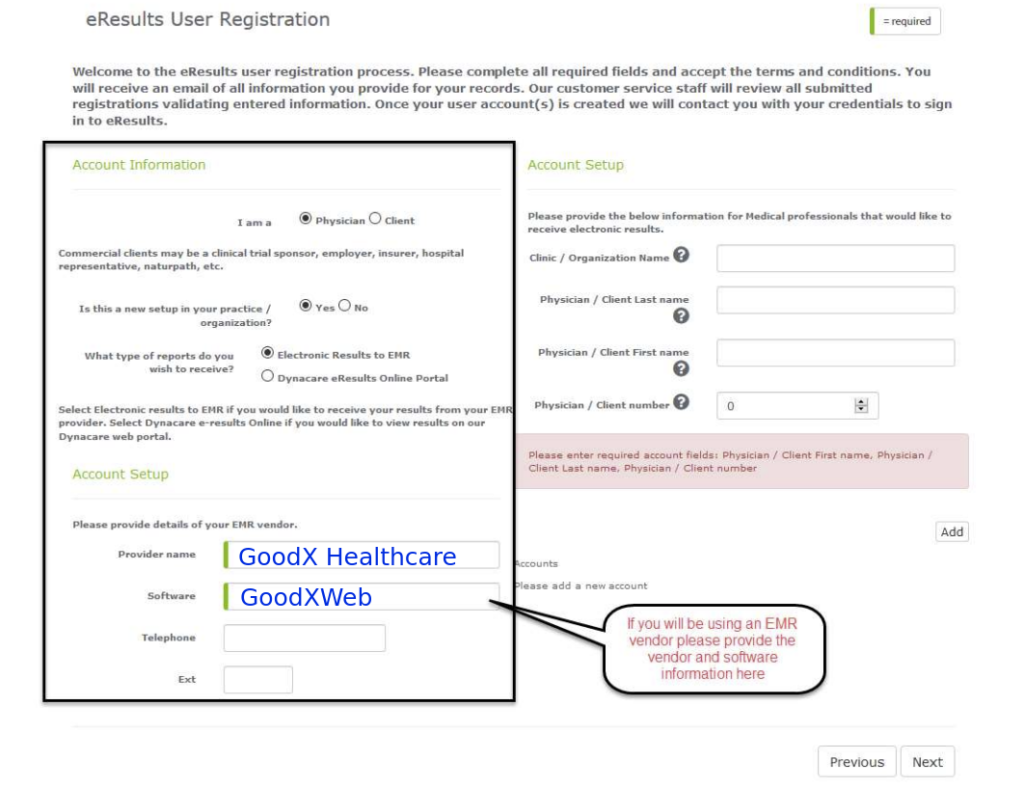
When completing the registration, select:
A Medical professional or Client who requires electronic results
If you previously received electronic results through another EMR vendor, do not submit a new registration.
Instead, contact Dynacare: 1-866-803-8403 (Option 1)
If your clinic already has Dynacare eResults configured and you're adding another provider:
Dynacare will process your application and email your practice with:
Processing typically takes 3–4 weeks.
GoodX Healthcare is usually copied on this email.
Once you receive your Dynacare credentials, email .
Include:
Our team will complete the GoodX integration and verify that electronic laboratory results are flowing into your EMR.
I previously received my Dynacare results through another EMR.
I haven't received my username and password.
I've received my credentials but results aren't appearing in GoodX.
Setting up Dynacare eResults is a simple process that allows laboratory results to be delivered directly into your GoodX EMR. Once your registration is complete and you've received your Dynacare credentials, the GoodX team will complete the integration so you can begin receiving results electronically.